Last updated on 2014-09-05
Previous Tutorial: Creating a GEF Editor – Part 2: EMF Code Generation
In the previous tutorial we finished the definition of the model and generated the model code for our editor. It is now time to start working on our editor.
The GEF editor we create will be implemented inside an eclipse plug-in. I will not explain all of the internals of eclipse plug-ins so if you are interested you can read more on the topic here. So let’s get going.
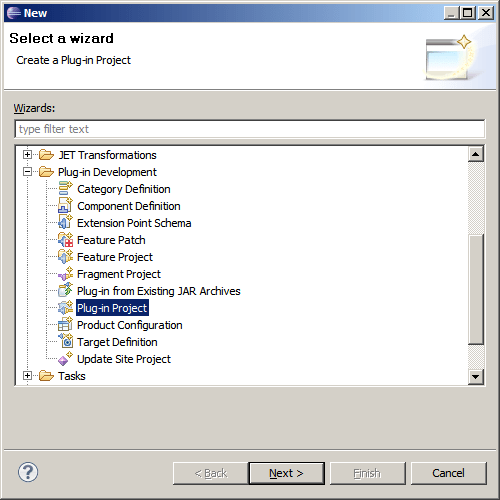
- Start by creating a new plug-in project for the GEF editor. Right click on the Package or Project explorer (whichever is open) and select “New”->”Project” (You can also do this by going to the “File” menu, “New” submenu). In the wizard that opens up, select “Plug-in Project” from the provided list and click “Next”:

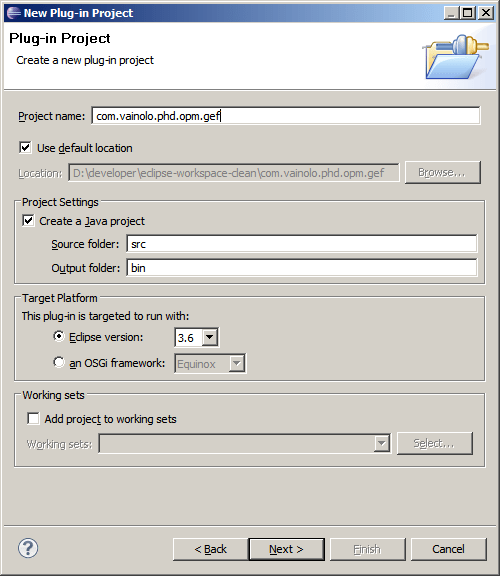
- I will name my project “com.vainolo.phd.opd.gef” in conformance with the previous projects. Click “Next” once again:

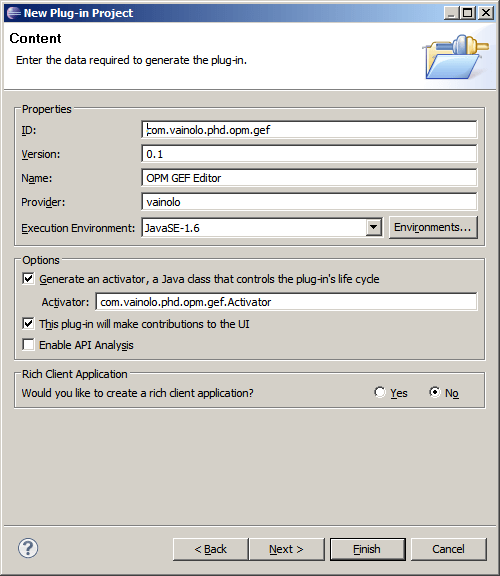
- The current wizard screen lets us edit some general information about the new plug-in, such as its name, version and such. I changed the name of the plug-in to “OPM GEF Editor”, the version to “0.1” and the provider to “vainolo”. Also check that the option to create a Rich Client Application is marked “No”. Click “Next”:

- The next screen provides us with a list or ready-made templates that can be used to create new eclipse plug-ins. While this may be useful and probably saves some time editing some files, I will start with a clean plug-in, so please un-check the “Create a plug-in using one of the templates” option, and click “Finish”.

- Your plugin project should now show in the Package/Project Explorer and the project editor should be open on your main editor window, as shown below. If this is not the case, you can double-click on the MANIFEST.MF file to open up this window.

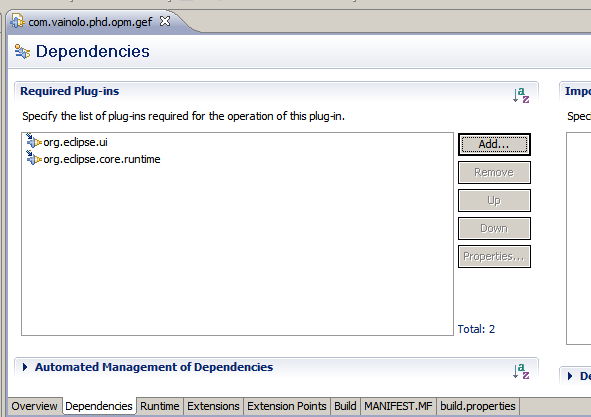
Notice that the values we set on the previous wizard show up on the “Overview” tab of the editor, so these values can be changed later on (for example in future versions of the plug-in). - Before we can start coding we have to add some project dependencies. These are code bundles that are required for the plugin-in to work, like code libraries. Go to the “Dependencies” tab in the MANIFEST.MF tab – this is the place where we can add these dependencies to the list:

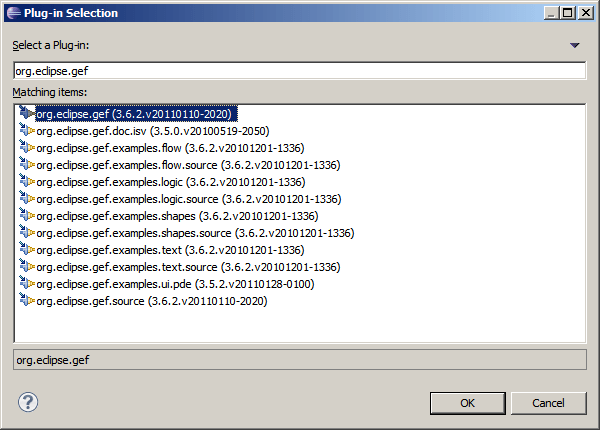
Click on “Add” in the “Required Plug-ins” and search for org.eclipse.gef (the version installed on your computer may be a bit different from mine, but everything will be probably fine if the difference is only minor).

Click “OK”. We’ll also add our model to the project dependencies. Click “Add” again and select the model plug-in project we created in the previous tutorials (select the “model” plug-in project). This is how your project’s dependencies should look like:

Save your file. - Now finally for some coooooding!. We will start by creating an empty EMF editor that does NOTHING. I like to do this because I like to see things working (you can call it agile, I call it not liking to do a lot of work only to find that at the end of the tutorial things don’t work). Eclipse editors are all subclasses of
org.eclipse.ui.part.EditorPartclass. GEF editors are subclasses oforg.eclipse.gef.ui.parts.GraphicalEditor. We will be using theorg.eclipse.gef.ui.parts.GraphicalEditorWithFlyoutPaletteas the base class for you editor since it already includes some pre-defined functionality (you guessed it – a flyout palette :-)) that is always nice to get free. So in our new plug-in project, let’s create our editor class. Right-Click on the GEF editor project (or on one of its packages), and select “New”->”Class”:

In the class wizard that pops up, set the name of the package tocom.vainolo.phd.opm.gef.editor, the class name toOPMGraphicalEditorand the superclass toorg.eclipse.gef.ui.parts.GraphicalEditorWithFlyoutPalette(you can click on the “Browse” button on the right of the superclass’s textbox to select the superclass from the list of available superclasses, and save some keystrokes):

- Voila, we have our editor class ready. Now for the editor to work there are two more things that we must do. First, we must add this editor as a plug-in extension. Plug-In extensions define the functionality (extension) that the plug-in provides, from a list of pre-defined available functionality that is defined in the workbench and the plug-ins that are running in it (also called extension points). We are providing a new editor to the workbench, therefore we will implement a
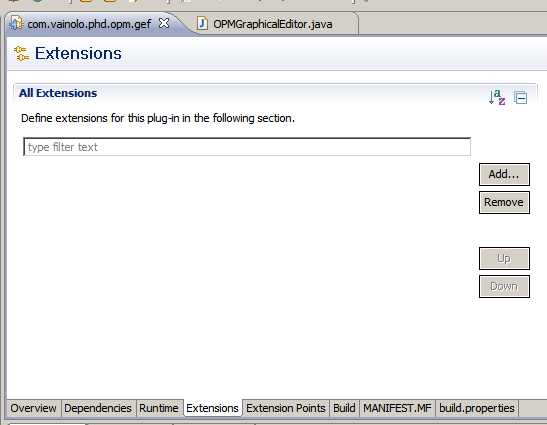
org.eclipse.ui.editorsextension using our editor. Go back to the MANIFEST.MF file and click on the “Extensions” tab, where currently no extensions should be defined. Click on the “Add” button:

From the list of possible extension points, selectorg.eclipse.ui.editors(you can write “editor” in the filter to reduce options) and click “Finish”:

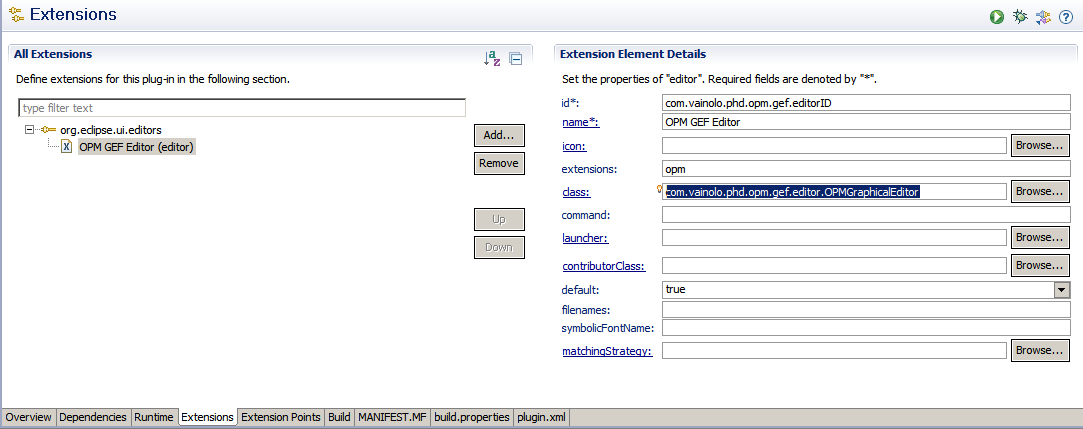
Now the eclipse workbench knows that this plugin provides an editor. But what editor? This is defined in the properties of the editor extension we just added to the MANIFEST.MF file. For now we’ll set the following properties for the editor:- id: com.vainolo.phd.opm.gef.editorID
- name: OPM GEF Editor
- extensions: opm
- class:
com.vainolo.phd.opm.gef.editor.OPMGraphicalEditor(you can click the browse button and select from a list of available classes that implementEditorPart).

Save the MANIFEST.MF file. You should now be able to navigate to theOPMGraphicalEditorclass by clicking on the “class” link at the left of the “class” textbox. At this point you can try to execute the plugin, but you will get an error message (run the project as an eclipse application and double click on the model created in the previous tutorial). This is because we are still missing one more small thing for the editor to work. - So, what are we missing? We are missing the
EditDomain. TheEditDomainis the “common denominator to all GEF objects which participate to an editing session of a model. It binds all the things together and provides all the components with some common features necessary to edit the model like a CommandStack and a PaletteViewer with Tools” [GEF Description 2]. The meaning of this is not fully clear to me, except that we have to set theEditDomainwhen we construct our editor. Gratefully, a full implementation for anEditDomainis provided by theDefaultEditDomainclass, so we’ll just create one and set it for editor will work. The full code of theOPMGraphicalEditorshows this:package com.vainolo.phd.opm.gef.editor; import org.eclipse.core.runtime.IProgressMonitor; import org.eclipse.gef.DefaultEditDomain; import org.eclipse.gef.palette.PaletteRoot; import org.eclipse.gef.ui.parts.GraphicalEditorWithFlyoutPalette; public class OPMGraphicalEditor extends GraphicalEditorWithFlyoutPalette { public OPMGraphicalEditor() { setEditDomain(new DefaultEditDomain(this)); } @Override protected PaletteRoot getPaletteRoot() { // TODO Auto-generated method stub return null; } @Override public void doSave(IProgressMonitor monitor) { // TODO Auto-generated method stub } } - Run the project as an eclipse application and see your editor working!.

Good Job!.






In the next tutorial we will learn how to add model entities to the editor we created here. Stay tuned 🙂
Next Tutorial: Creating a GEF Editor – Part 4: Showing the Model on the Editor
I got a problem in step 8..I didn’t got that OPM GEF Editor(editor) under the org.eclipse.ui.editor menu in Extension tab..?
I was unable to understand your question. Did you click on browse and didn’t find the class?
Any way good tutorial..thanx for it..Please be kind enough to give me a answer..
Did you generate the server, as described in the previous tutorial?
Hi, Some how I wont be able to see OPM Editor, Any Idea !
I ran this application by clicking on ‘Launch an Eclipse application’
Can you be more specific? did you get a new eclipse instance? Do you have an EMF OPM file like shown in the previous tutorial, and when you tried to open it didn’t work? if you want help you need to give me more information.
Hi ADMIN,
I was able to start a new instance of eclipse and create theBestOPMModel on previous tutorial, however, on this tutorial last stop i run the application and Eclipse Application and it started the new eclipse instance and it had theBestOPMModel I previously created,. Problem is everytime I click on theBestOPMModel it gives following error.
!ENTRY org.eclipse.jface 4 2 2013-12-17 12:39:59.388
!MESSAGE Problems occurred when invoking code from plug-in: “org.eclipse.jface”.
!STACK 0
org.eclipse.swt.SWTException: Unsupported or unrecognized format
at org.eclipse.swt.SWT.error(SWT.java:4397)
at org.eclipse.swt.SWT.error(SWT.java:4312)
at org.eclipse.swt.SWT.error(SWT.java:4283)
at org.eclipse.swt.internal.image.FileFormat.load(FileFormat.java:84)
at org.eclipse.swt.graphics.ImageLoader.load(ImageLoader.java:147)
at org.eclipse.swt.graphics.ImageDataLoader.load(ImageDataLoader.java:22)
at org.eclipse.swt.graphics.ImageData.(ImageData.java:331)
at org.eclipse.jface.resource.URLImageDescriptor.getImageData(URLImageDescriptor.java:71)
at org.eclipse.jface.resource.ImageDescriptor.createImage(ImageDescriptor.java:273)
at org.eclipse.jface.resource.URLImageDescriptor.createImage(URLImageDescriptor.java:166)
at org.eclipse.jface.resource.ImageDescriptor.createImage(ImageDescriptor.java:227)
at org.eclipse.ui.internal.registry.EditorDescriptor.getImageDescriptor(EditorDescriptor.java:303)
at org.eclipse.ui.internal.registry.EditorRegistry.getImageDescriptor(EditorRegistry.java:1472)
at org.eclipse.ui.internal.ide.model.WorkbenchFile.getBaseImage(WorkbenchFile.java:63)
at org.eclipse.ui.internal.ide.model.WorkbenchResource.getImageDescriptor(WorkbenchResource.java:42)
at org.eclipse.jdt.internal.ui.viewsupport.JavaElementImageProvider.getWorkbenchImageDescriptor(JavaElementImageProvider.java:182)
at org.eclipse.jdt.internal.ui.viewsupport.JavaElementImageProvider.computeDescriptor(JavaElementImageProvider.java:122)
at org.eclipse.jdt.internal.ui.viewsupport.JavaElementImageProvider.getImageLabel(JavaElementImageProvider.java:97)
at org.eclipse.jdt.internal.ui.viewsupport.JavaUILabelProvider.getImage(JavaUILabelProvider.java:144)
at org.eclipse.jdt.internal.ui.packageview.PackageExplorerLabelProvider.getImage(PackageExplorerLabelProvider.java:140)
at org.eclipse.jdt.internal.ui.navigator.JavaNavigatorLabelProvider.getImage(JavaNavigatorLabelProvider.java:128)
at org.eclipse.ui.internal.navigator.NavigatorContentServiceLabelProvider.findImage(NavigatorContentServiceLabelProvider.java:197)
at org.eclipse.ui.internal.navigator.NavigatorContentServiceLabelProvider.getColumnImage(NavigatorContentServiceLabelProvider.java:105)
at org.eclipse.ui.internal.navigator.NavigatorContentServiceLabelProvider.getImage(NavigatorContentServiceLabelProvider.java:98)
at org.eclipse.ui.internal.navigator.NavigatorDecoratingLabelProvider$StyledLabelProviderAdapter.getImage(NavigatorDecoratingLabelProvider.java:59)
at org.eclipse.jface.viewers.DelegatingStyledCellLabelProvider.getImage(DelegatingStyledCellLabelProvider.java:184)
at org.eclipse.jface.viewers.DecoratingStyledCellLabelProvider.getImage(DecoratingStyledCellLabelProvider.java:167)
at org.eclipse.ui.navigator.CommonNavigatorManager.updateStatusBar(CommonNavigatorManager.java:308)
at org.eclipse.ui.navigator.CommonNavigatorManager$1.selectionChanged(CommonNavigatorManager.java:74)
at org.eclipse.jface.viewers.StructuredViewer$3.run(StructuredViewer.java:888)
at org.eclipse.core.runtime.SafeRunner.run(SafeRunner.java:42)
at org.eclipse.ui.internal.JFaceUtil$1.run(JFaceUtil.java:49)
at org.eclipse.jface.util.SafeRunnable.run(SafeRunnable.java:175)
at org.eclipse.jface.viewers.StructuredViewer.firePostSelectionChanged(StructuredViewer.java:886)
at org.eclipse.jface.viewers.StructuredViewer.handlePostSelect(StructuredViewer.java:1226)
at org.eclipse.ui.navigator.CommonViewer.handlePostSelect(CommonViewer.java:470)
at org.eclipse.jface.viewers.StructuredViewer$5.widgetSelected(StructuredViewer.java:1251)
at org.eclipse.jface.util.OpenStrategy.firePostSelectionEvent(OpenStrategy.java:262)
at org.eclipse.jface.util.OpenStrategy.access$5(OpenStrategy.java:256)
at org.eclipse.jface.util.OpenStrategy$3.run(OpenStrategy.java:433)
at org.eclipse.swt.widgets.RunnableLock.run(RunnableLock.java:35)
at org.eclipse.swt.widgets.Synchronizer.runAsyncMessages(Synchronizer.java:135)
at org.eclipse.swt.widgets.Display.runAsyncMessages(Display.java:4145)
at org.eclipse.swt.widgets.Display.readAndDispatch(Display.java:3762)
at org.eclipse.e4.ui.internal.workbench.swt.PartRenderingEngine$9.run(PartRenderingEngine.java:1113)
at org.eclipse.core.databinding.observable.Realm.runWithDefault(Realm.java:332)
at org.eclipse.e4.ui.internal.workbench.swt.PartRenderingEngine.run(PartRenderingEngine.java:997)
at org.eclipse.e4.ui.internal.workbench.E4Workbench.createAndRunUI(E4Workbench.java:138)
at org.eclipse.ui.internal.Workbench$5.run(Workbench.java:610)
at org.eclipse.core.databinding.observable.Realm.runWithDefault(Realm.java:332)
at org.eclipse.ui.internal.Workbench.createAndRunWorkbench(Workbench.java:567)
at org.eclipse.ui.PlatformUI.createAndRunWorkbench(PlatformUI.java:150)
at org.eclipse.ui.internal.ide.application.IDEApplication.start(IDEApplication.java:124)
at org.eclipse.equinox.internal.app.EclipseAppHandle.run(EclipseAppHandle.java:196)
at org.eclipse.core.runtime.internal.adaptor.EclipseAppLauncher.runApplication(EclipseAppLauncher.java:110)
at org.eclipse.core.runtime.internal.adaptor.EclipseAppLauncher.start(EclipseAppLauncher.java:79)
at org.eclipse.core.runtime.adaptor.EclipseStarter.run(EclipseStarter.java:354)
at org.eclipse.core.runtime.adaptor.EclipseStarter.run(EclipseStarter.java:181)
at sun.reflect.NativeMethodAccessorImpl.invoke0(Native Method)
at sun.reflect.NativeMethodAccessorImpl.invoke(NativeMethodAccessorImpl.java:60)
at sun.reflect.DelegatingMethodAccessorImpl.invoke(DelegatingMethodAccessorImpl.java:37)
at java.lang.reflect.Method.invoke(Method.java:611)
at org.eclipse.equinox.launcher.Main.invokeFramework(Main.java:636)
at org.eclipse.equinox.launcher.Main.basicRun(Main.java:591)
at org.eclipse.equinox.launcher.Main.run(Main.java:1450)
at org.eclipse.equinox.launcher.Main.main(Main.java:1426)
Any Idea why is that?
Hi
I am new to eclipse plugin development but I got a project to develop a GEF plugin having drag n drop and need to create navigator, multiple workspaces, properties window and widget search window.
Can anybody help me doing so?
Please reach me on my mail ID : vijay@girnarsoft.com.
Thanks in Advance.
Hi
I followed the tutorial until step 10 but when I run the project as an eclipse application, I don’t have the OPM GEF Editor at the center of screen(I have this error: Could not open the editor ==>> The editor class could not be instantiated. This usually indicates a missing no-arg constructor or that the editor’s class name was mistyped in plugin.xml.)
What can I do?
Did you check the things said in the error? Seems that the editor file couldn’t be found…
Hello admin. Step 10 is different in my eclipse. I only see the the same thing I saw in the previous part. The hierarchy at the right, where I can click right ->new child and so on. I cant get that view you have, an empty window at the right. I checked everything twice, I cant find a difference. Can you help maybe?
Try right-clicking on your
.opmfile and selecting “Open With”->”OPM GEF Editor”. I think eclipse remembers which type of editor opened the file last time and opens it again with this editor (the EMF editor).Hi vainolo. It works! Never figured it out by myself and google. Thank you for this fast answer and this great tutorial!
Enjoy
HI!
I do all the steps and I have a problem.
When i run a project as Eclipse Application i can not see any think.
I just only can see the tree editor that i created in the previous step.
Can you help me please.
Regards,
Dorina
Try right clicking on the file and selecting “OPM GEF Editor”. Maybe this will work.
Hello,
I finished with 1oth step getting new eclipse instance but could not open the editor…Getting following exception..Please help..
Could not open the editor: An exception was thrown during initialization
java.lang.NullPointerException
at org.eclipse.gef.ui.parts.GraphicalEditor.getCommandStack(GraphicalEditor.java:252)
at org.eclipse.gef.ui.parts.GraphicalEditor.init(GraphicalEditor.java:347)….
If you followed the tutorial step by step this should not happen. Check that you followed all the steps correctly. It should work.
Good tutorial. Thanks!
i get NPE during mouse click on palette, here goes the exception
java.lang.NullPointerException
at org.eclipse.gef.ui.parts.AbstractEditPartViewer.fireSelectionChanged(AbstractEditPartViewer.java:247)
at org.eclipse.gef.ui.parts.AbstractEditPartViewer$1.run(AbstractEditPartViewer.java:131)
at org.eclipse.gef.SelectionManager.fireSelectionChanged(SelectionManager.java:144)
at org.eclipse.gef.SelectionManager.appendSelection(SelectionManager.java:83)
at org.eclipse.gef.ui.parts.AbstractEditPartViewer.appendSelection(AbstractEditPartViewer.java:190)
at org.eclipse.gef.ui.parts.AbstractEditPartViewer.select(AbstractEditPartViewer.java:599)
at org.eclipse.gef.ui.palette.editparts.PaletteEditPart$SingleSelectionTracker.performSelection(PaletteEditPart.java:174)
at org.eclipse.gef.tools.SelectEditPartTracker.performConditionalSelection(SelectEditPartTracker.java:167)
at org.eclipse.gef.tools.SelectEditPartTracker.handleButtonDown(SelectEditPartTracker.java:92)
at org.eclipse.gef.internal.ui.palette.editparts.ToolEntryEditPart$ToggleButtonTracker.handleButtonDown(ToolEntryEditPart.java:92)
at org.eclipse.gef.internal.ui.palette.editparts.ToolEntryEditPart$OtherToggleButtonTracker.handleButtonDown(ToolEntryEditPart.java:169)
at org.eclipse.gef.tools.AbstractTool.mouseDown(AbstractTool.java:1091)
at org.eclipse.gef.tools.SelectionTool.mouseDown(SelectionTool.java:514)
at org.eclipse.gef.EditDomain.mouseDown(EditDomain.java:245)
at org.eclipse.gef.ui.parts.DomainEventDispatcher.dispatchMousePressed(DomainEventDispatcher.java:348)
at org.eclipse.draw2d.LightweightSystem$EventHandler.mouseDown(LightweightSystem.java:523)
at org.eclipse.swt.widgets.TypedListener.handleEvent(TypedListener.java:192)
at org.eclipse.swt.widgets.EventTable.sendEvent(EventTable.java:84)
at org.eclipse.swt.widgets.Widget.sendEvent(Widget.java:1053)
at org.eclipse.swt.widgets.Display.runDeferredEvents(Display.java:4169)
at org.eclipse.swt.widgets.Display.readAndDispatch(Display.java:3758)
at org.eclipse.e4.ui.internal.workbench.swt.PartRenderingEngine$9.run(PartRenderingEngine.java:1022)
at org.eclipse.core.databinding.observable.Realm.runWithDefault(Realm.java:332)
at org.eclipse.e4.ui.internal.workbench.swt.PartRenderingEngine.run(PartRenderingEngine.java:916)
at org.eclipse.e4.ui.internal.workbench.E4Workbench.createAndRunUI(E4Workbench.java:86)
at org.eclipse.ui.internal.Workbench$5.run(Workbench.java:585)
at org.eclipse.core.databinding.observable.Realm.runWithDefault(Realm.java:332)
at org.eclipse.ui.internal.Workbench.createAndRunWorkbench(Workbench.java:540)
at org.eclipse.ui.PlatformUI.createAndRunWorkbench(PlatformUI.java:149)
at org.eclipse.ui.internal.ide.application.IDEApplication.start(IDEApplication.java:124)
at org.eclipse.equinox.internal.app.EclipseAppHandle.run(EclipseAppHandle.java:196)
at org.eclipse.core.runtime.internal.adaptor.EclipseAppLauncher.runApplication(EclipseAppLauncher.java:110)
at org.eclipse.core.runtime.internal.adaptor.EclipseAppLauncher.start(EclipseAppLauncher.java:79)
at org.eclipse.core.runtime.adaptor.EclipseStarter.run(EclipseStarter.java:353)
at org.eclipse.core.runtime.adaptor.EclipseStarter.run(EclipseStarter.java:180)
at sun.reflect.NativeMethodAccessorImpl.invoke0(Native Method)
at sun.reflect.NativeMethodAccessorImpl.invoke(NativeMethodAccessorImpl.java:39)
at sun.reflect.DelegatingMethodAccessorImpl.invoke(DelegatingMethodAccessorImpl.java:25)
at java.lang.reflect.Method.invoke(Method.java:597)
at org.eclipse.equinox.launcher.Main.invokeFramework(Main.java:629)
at org.eclipse.equinox.launcher.Main.basicRun(Main.java:584)
at org.eclipse.equinox.launcher.Main.run(Main.java:1438)
at org.eclipse.equinox.launcher.Main.main(Main.java:1414)
listener[i] in fireSelectionChanged() in AbstractEditPartViewer returns null and this results in NullPointerException
here is the method:
protected void fireSelectionChanged() {
Object listeners[] = selectionListeners.toArray();
SelectionChangedEvent event = new SelectionChangedEvent(this,
getSelection());
for (int i = 0; i < listeners.length; i++)
((ISelectionChangedListener) listeners[i]).selectionChanged(event);
}
Please help me to solve this.
Are you using the latest code? When is this happening?
My GEF editor has many figures and these figures have some size. The layout of these figures are ToolBarLayout. Now when the child figures are added to these figures a scrollbar must be automatically added(when no space is available in parent figure). And the editor may have many figures that may have such scrollbars. Kindly give me an idea to do this.
Hi Dipankar. I recommend asking these questions in StackOverflow. Here I only answers things specific to the tutorials.
Except that we’ve created an new option for OPM Model files to be opened with OPM GEF Editor is there something more meaningful?
This is the foundation for the editor. Even though the result is simply an empty editor, you can see how much plumbing this requires. But yes, the result is not very meaningful 🙂
Hello, I’m at step 8. After I add the extension, I’m trying to fill the extension details to the right. In my case, Only the Name and ID boxes are displayed. When I fill those two, I go to the class and I notice the 3 imports are missing, probably due to the fact that I didn’t fill the class box on the extension details(It didn’t exit).
Any Ideas? I’m using Eclipse Mars 4.5
The possible extension fields are based on the extension point you chose. Are you sure you chose the right one?
Hello, I’m at step 10. Even-though I ran the project as an Eclipse Application I could not see the ‘test’ folder and the OPM GEF Editor. Could you give me some help?
Hello, I’m at step 10. Eventhough, I ran the project as an Eclipse Application. I could not see the .opm and OPM GEF Editor. Could you give me some help with it?
If you saw the folder in the previous tutorial step then it will appear here if you are using the same Eclipse workspace. Sometimes Eclipse creates a new worspace when you run the project, so you have to choose this manually when running it.